How to Set Booking Availability Around Your Opening Hours
Show when your business is open and choose when customers can book each service. BBSide lets you manage opening hours and booking availability separately.
A studio can be open all afternoon while only offering portrait sessions in the morning. A salon can welcome customers six days a week while a particular stylist works three. The business's opening hours and its appointment times answer different questions.
BBSide gives you two independent ways to show that: opening hours for people planning a visit, and booking calendars for people arranging a service.
Show when people can visit
Your opening hours tell customers when the business is open. On a standard business page, they appear in Location & Opening hours, alongside the information people need to find you.
Each business page can have one opening-hours calendar. Use it for your usual week, including separate morning and afternoon intervals if you close for a break. Opening hours are available on every plan and do not use up your booking-calendar allowance.
If you stay open after midnight, you can record that as one overnight interval. A bar open from 18:00 until 02:00 can show its actual evening hours without splitting them into two unrelated-looking entries.
This gives someone planning to drop in a clear answer to “Will you be open when I get there?”
Choose when each service is available
Booking calendars answer “When can I book this appointment?” You choose the schedule and the services offered through it.
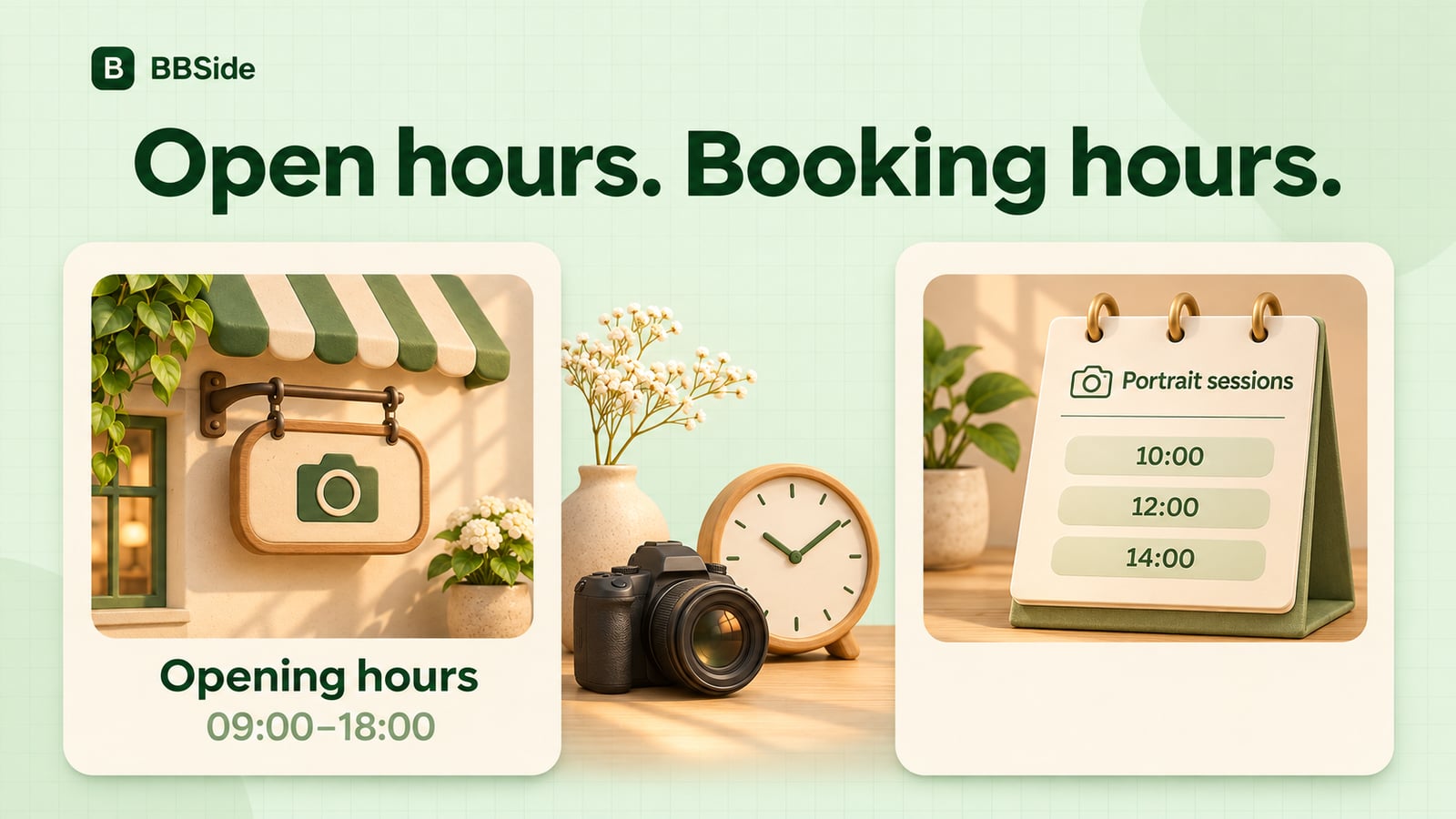
Imagine Lumen, our fictional photography studio. It is open from 09:00 to 18:00, but takes portrait appointments between 10:00 and 15:00. The remaining time is useful for preparing the studio, editing photographs, and handing over prints.
Its opening hours can show the full working day while its booking calendar offers the shorter appointment window. Both describe the studio accurately.
You can have several booking calendars, for example one for each photographer or stylist. Each can have different hours and services. The available number depends on your subscription plan; our guide to bookings for several team members walks through a small-team example.
Make room for preparation
Available time is only part of the decision. You may also need some notice before an appointment.
A booking rule can require customers to book at least a certain amount of time ahead. If Lumen needs 12 hours to prepare for a session, the studio can use that deadline instead of accepting requests just before the customer arrives.
The deadline can apply to a service, a calendar, or a particular service on a particular calendar. That gives you room to handle a quick consultation differently from an appointment that needs more preparation.
If last-minute requests suit your business, leave the advance deadline unset.
Give special dates their own hours
Holidays, an early finish, or an occasional late opening should not require rewriting your usual week. A date override lets you mark a particular date as closed or give it different hours.
For example, Lumen might open from 09:00 to 13:00 on one Friday. It can show those hours for visitors and shorten the booking availability on the affected photographer's calendar. The following Friday still follows the normal weekly schedule.
Opening hours and booking calendars are independent, so make the change wherever it matters. Closing the studio for a holiday means updating both the information for visitors and the calendars that take appointments. A single photographer's day off may only need a change to that person's calendar.
Look at the page from both points of view
Once you have set the hours, look at your public page as someone planning a visit, then open a service as someone booking an appointment.
The first view should make it clear when the business is open. The second should offer the times you want to make available for that service. It is fine for those hours to differ; a short explanation in your service description can help if customers are likely to wonder why.
With those two schedules in place, you can share one page that helps both kinds of customer. If you are setting up your page for the first time, our AI page-creation guide covers the starting point, and our guide to guest booking follows the customer's next steps.