How to Take Bookings for More Than One Team Member
Take bookings for several team members from one BBSide page. Give each person a calendar, set their hours, and choose the services they offer.
Two people can work at the same business without keeping the same hours or offering exactly the same services. Your booking page should make that easy for customers to understand.
In BBSide, separate booking calendars let you give each team member their own appointment schedule. Customers still start from one business page, with your services, prices, and photographs together.
Give each calendar a clear name
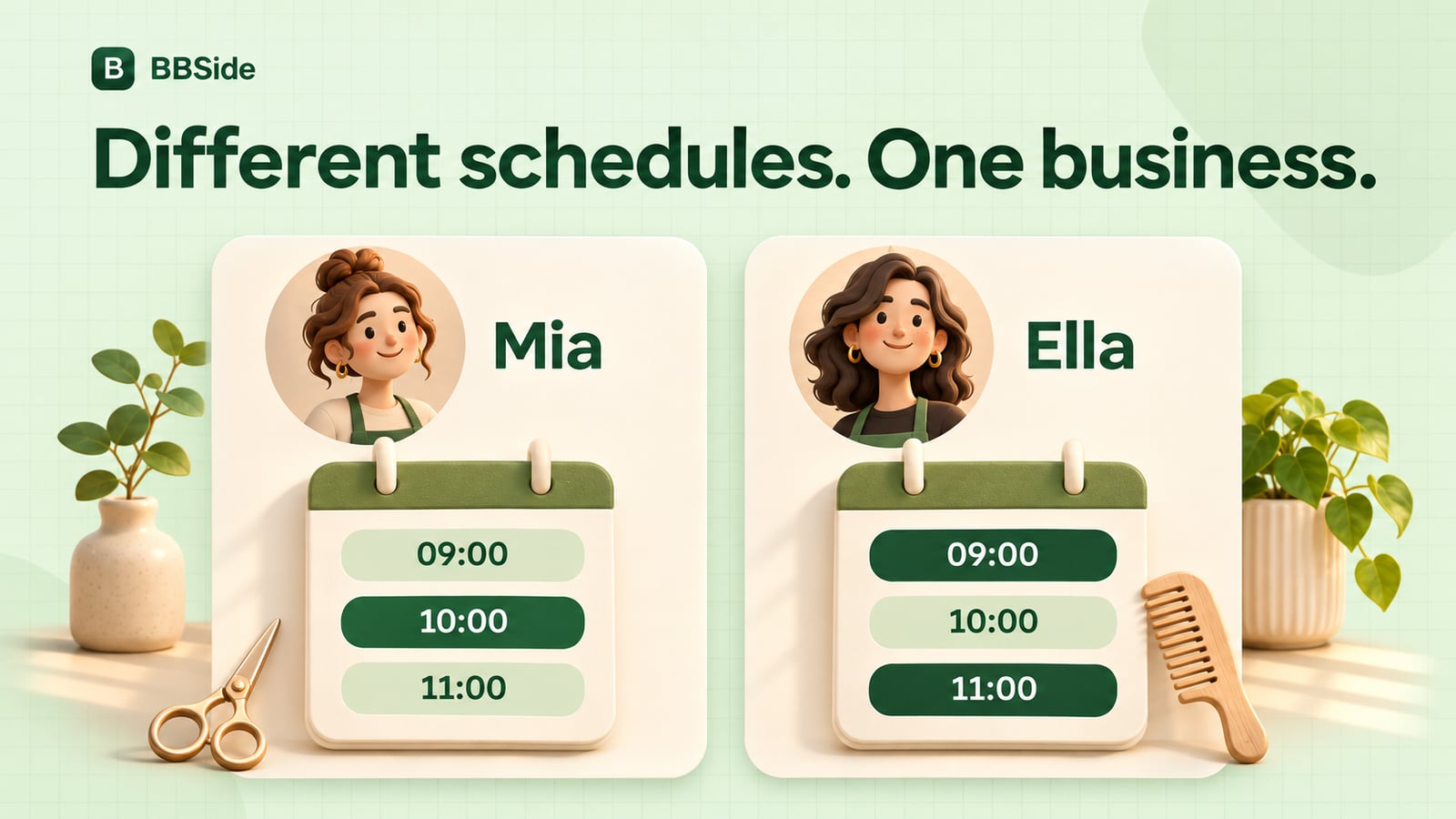
Imagine a small salon with two stylists, Mia and Ella. Mia works Tuesday to Friday. Ella works Monday, Wednesday, and Saturday. Both offer haircuts, while colour appointments are available with Mia.
The salon can create one booking calendar named “Mia” and another named “Ella”. Those names help customers recognise who they are choosing when a service is available on more than one calendar.
Each calendar has its own availability. An appointment booked with Mia at 10:00 does not take away Ella's 10:00 appointment. Both stylists can welcome a customer at the same time.
The number of booking calendars available depends on your BBSide plan. Your business's opening hours are separate and do not use up a booking calendar.
Match the services to the right people
Assign each service to the calendars where it is offered. For the salon, that means haircuts on both calendars and colour appointments on Mia's calendar.
A customer looking for a haircut can choose between the two stylists' available times. Someone looking for colour appointments sees the availability for that service.
You can offer the same service through several calendars without creating another copy for each person. Its description, photographs, price, and appointment length stay together on the service card.
When you add another service later, choose the calendars that should offer it. This keeps the booking choices aligned with the work each person actually does.
Set hours around each person's working day
Give each calendar the days and hours when that person takes appointments. You can use more than one interval in a day, so a lunch break can sit between morning and afternoon availability.
Mia might take bookings from 09:00 to 12:30 and 13:30 to 17:00. Ella might start later on Wednesdays and offer a longer Saturday schedule. Neither needs to follow the other's pattern.
Set the length of each service to reflect the appointment. A haircut and a colour session can take different amounts of time even when they use the same stylist's calendar.
Your public opening hours can cover the salon's overall working week. Customers checking whether the business is open see those hours; customers arranging a service choose from the relevant booking calendar. Our guide to opening hours and booking availability explains how the two fit together.
Leave enough notice for appointments that need preparation
Some appointments can be arranged at short notice. Others need supplies, setup, or time to prepare.
Booking rules let you set how far before an appointment customers must book. For example, you could require colour appointments to be booked at least 12 hours ahead while accepting haircuts closer to the start time.
You can apply a deadline to a service, a calendar, or a particular service with a particular team member. If you do not need an advance deadline, you can leave it unset.
Handle a day off without changing the whole week
Use a date override when someone is away for a specific day or working different hours on that date. A one-off closure on Mia's calendar leaves Ella's schedule available.
If the whole business is closing, update the affected booking calendars and the public opening hours. That keeps the information for visitors consistent with the appointment choices.
Once your calendars are ready, open a service on your public page and try the choices a customer would make. You should be able to recognise the people, see the appropriate times, and arrange an appointment from the same business page.
Customers can book without creating a BBSide account, with updates sent by email. You manage the team's appointment requests and booking history in your dashboard.