How to Start Taking Online Bookings for Your Small Business
Set up online booking with BBSide. Publish your services, show clients your available times and take your first appointment requests from one link.
When someone messages to ask when you can fix their bike, you can send them straight to your next available appointments. They see what the service includes, how much it costs and when they can come in. Here’s how a small repair shop could set that up on BBSide.
Put your most common services on the page
Start with jobs you already know how to price and schedule. A bike shop might open these three for online booking:
| Service | Appointment length | Price | What it includes |
|---|---|---|---|
| Bike safety check | 30 minutes | €25 | Check the brakes, tyres and chain |
| Brake adjustment | 45 minutes | €40 | Adjust the front and rear brakes. Parts are extra. |
| Basic tune-up | 60 minutes | €60 | Safety check, gear and brake adjustments, and chain lubrication |
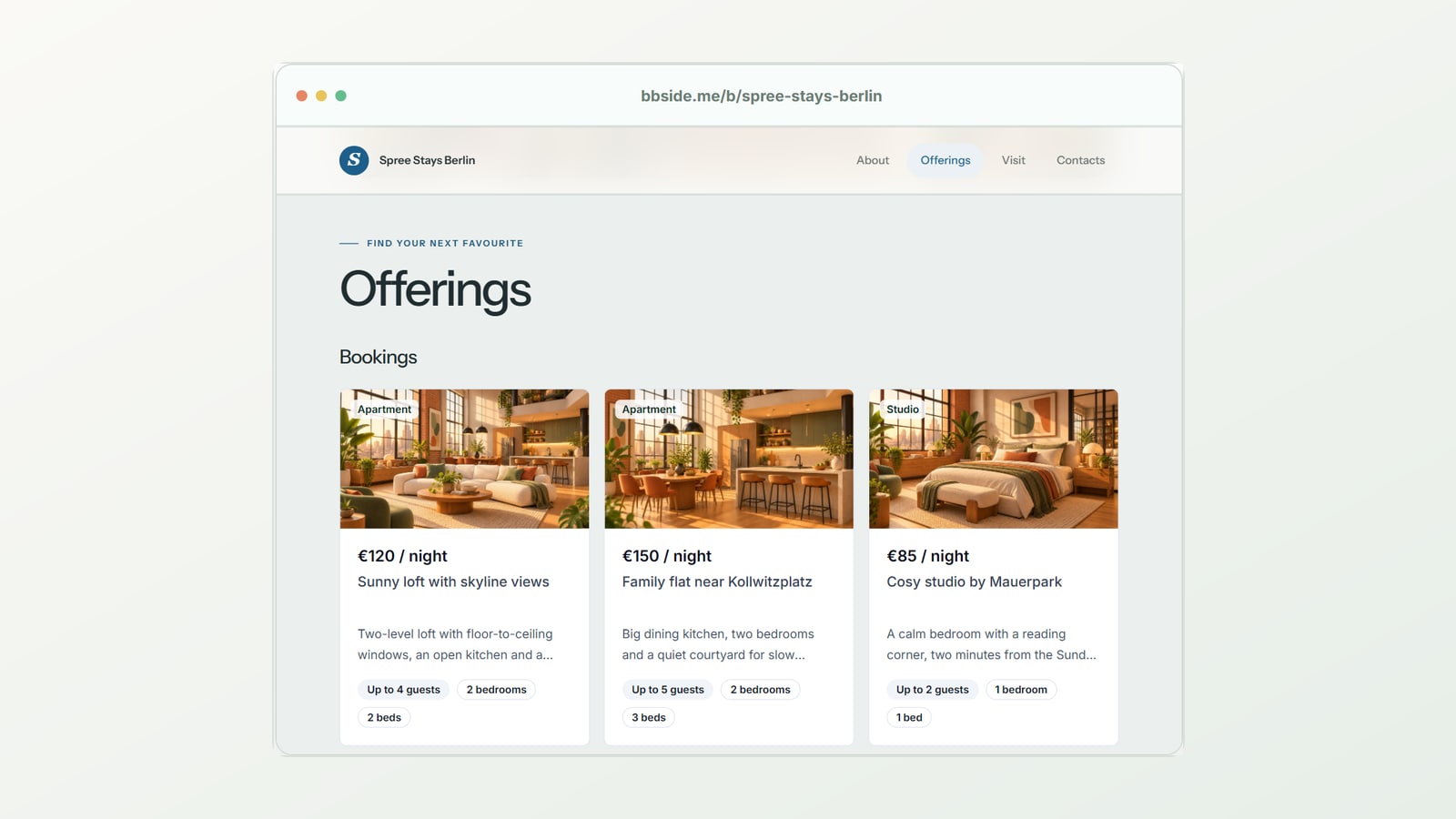
On BBSide, each service gets a card with its description, price and duration. Add a photo that shows the work. For something harder to price, like a bike damaged in a crash, you can keep the conversation open through the contact details on your page.
Set the hours you want customers to book
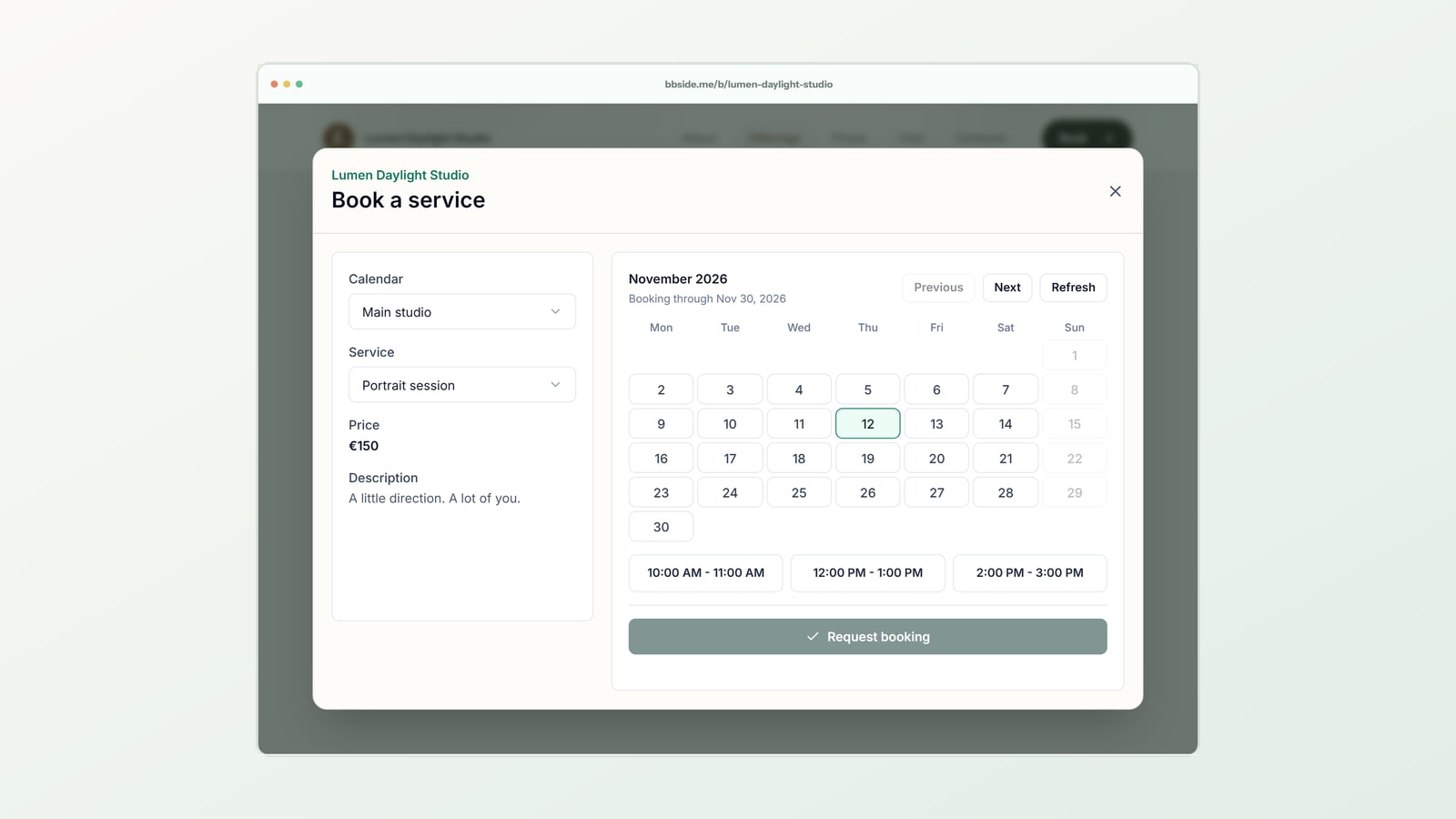
Give those services a booking calendar. The shop might be open from 09:00 to 18:00 for drop-offs, with appointments available from 10:00 to 13:00 and 14:00 to 17:00. BBSide displays opening hours separately, so people looking to collect a bike can still see that the shop is open after the last appointment.
Set aside the full time you need for each service, including a few minutes to get the bench ready for the next job. If you need two hours’ notice for a tune-up, set a booking deadline for it. You can also adjust availability for a day off or a change in hours.
See what happens when a client books
A customer picks a tune-up, chooses a time and leaves an email address on your page. They can do it without a BBSide account. You see the request in your dashboard and can confirm it there. The client receives a confirmation by email.
Before you share the link, put through one test request from your phone. Walk through it the same way a customer will, from checking the price to choosing a time. The BBSide booking demo shows both sides of the request.
Share the page where clients already find you
Put the page link in your social profile, your email signature or on your existing website. If someone asks about a safety check, send them a direct link to that service. You can say, “Here’s what’s included in a safety check and the times I have this week.”
Start with one calendar and the services you know best. If you bring in another mechanic, you can give them their own working hours and choose which services they take.