How to Send a Payment Link to a Customer
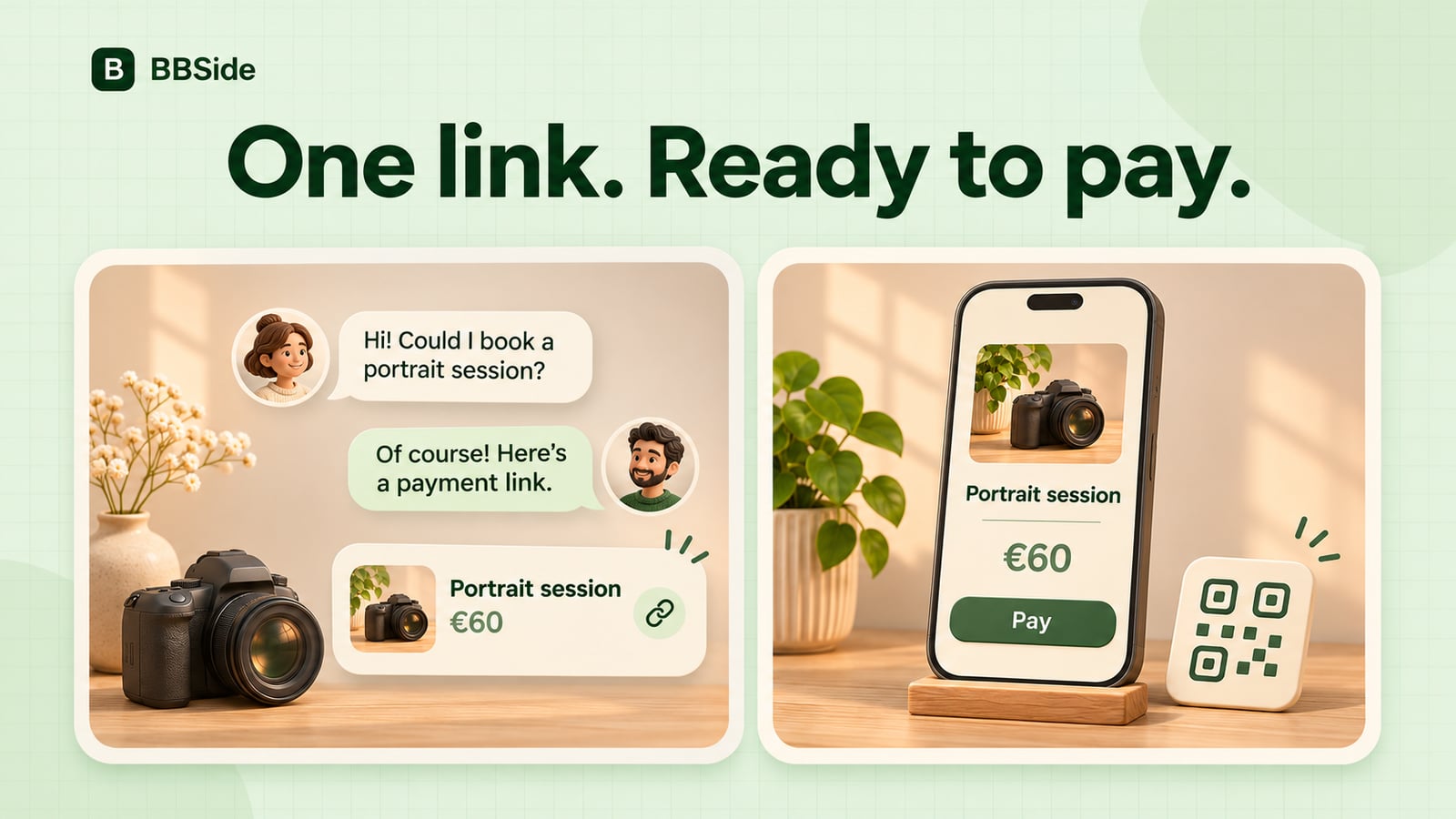
Send a payment link to a customer or show a QR code in person. With Stripe connected to BBSide, you can request payment for a service or product.
A customer has agreed to a portrait session, ordered a photo book, or asked you to go ahead with a repair. The next thing they need is a straightforward way to pay.
A payment link gives them a checkout page they can open from a message. If you are together, they can scan a QR code from your screen instead. You can use either approach through BBSide once your Stripe account is ready to accept payments.
Start with what the customer is paying for
Give the request a title the customer will recognise, along with the agreed amount and currency. “Portrait session — 45 minutes” is more helpful than “Payment” when someone comes back to the message later.
For an example, imagine Lumen, the fictional photography studio used in our other guides. A customer has chosen a €60 portrait session. The studio can select that service when creating the payment link, which fills in its name and price. For a specially agreed package, it can enter a custom title and amount instead.
A short message supplies any context the title does not cover:
Here's the payment link for your portrait session on Thursday. It covers the 45-minute shoot and six edited photos. Looking forward to seeing you!
The customer can see what was agreed and open the link when they are ready.
Connect Stripe once, then create links as you need them
The Payments section in your BBSide dashboard is where you connect Stripe and manage your payment links. Stripe guides you through setting up the account for your business. Once card payments are enabled, you can create a link for a service, a product, or a custom amount.
You can choose a single-use link, which closes after one completed payment, or a reusable link. For a request intended for one particular customer, single use is a useful choice.
After creating the link, copy it into the conversation where you agreed the work. It can go in an email, a messaging app, or a BBSide chat. The customer opens Stripe's payment page and completes the payment there, without having to create a BBSide account.
Send the request in your BBSide chat
If you are already talking to the customer on BBSide, you can keep the payment request in that conversation.
With Stripe connected and services or products on your page, the plus button in chat lets you choose an active payment link or create a new one. BBSide displays the request as a card with its title and amount, so the customer can recognise it alongside your messages.
That is convenient for work you agree through conversation. A customer asks about an extra print, you settle on the size and price, and you send the request in the same chat.
Show a QR code when the customer is with you
There is no need to send a message just to pass a link to someone standing in front of you. Each payment link in your dashboard has a Show QR option.
Open it on your computer or phone and let the customer scan it with their phone. The code opens the same payment page as the link. At Lumen, someone collecting a photo book could scan the code at the studio and pay from their own device.
This works well when a customer would rather scan your screen than share a contact address for a payment message.
Keep track of the payment afterwards
Payments appear alongside your links once Stripe confirms them. You can return to Payments to check the result or refresh the list if the customer has just finished paying.
When you no longer want to accept payments through a link, you can deactivate it. A single-use link closes after its completed payment, so the customer cannot pay through it again.
If you are still deciding how to present what you sell, our guide to services, products, and price lists helps you put the right details on your business page. For appointments, you can also let customers book without creating an account.