How to Take Table Reservations Directly From Your Restaurant Page
Take table reservations directly with BBSide. Let guests pick a time on your restaurant page and confirm their requests from one dashboard.
At 18:30 on a Friday, the restaurant phone is often the last thing you have time for. Give guests a BBSide link they can open to see when you have room. They send a request with the party size and their contact details. Your team can review it when they have a moment, with the details already in one place.
Tell BBSide what you can seat
Start with the tables you want to offer online. At Kastanie Kitchen, our demo restaurant, there are six tables that seat up to two people and four that seat up to four. The terrace has larger tables you can offer to bigger groups. Specify how many tables of each type you have and the smallest and largest party each can take.
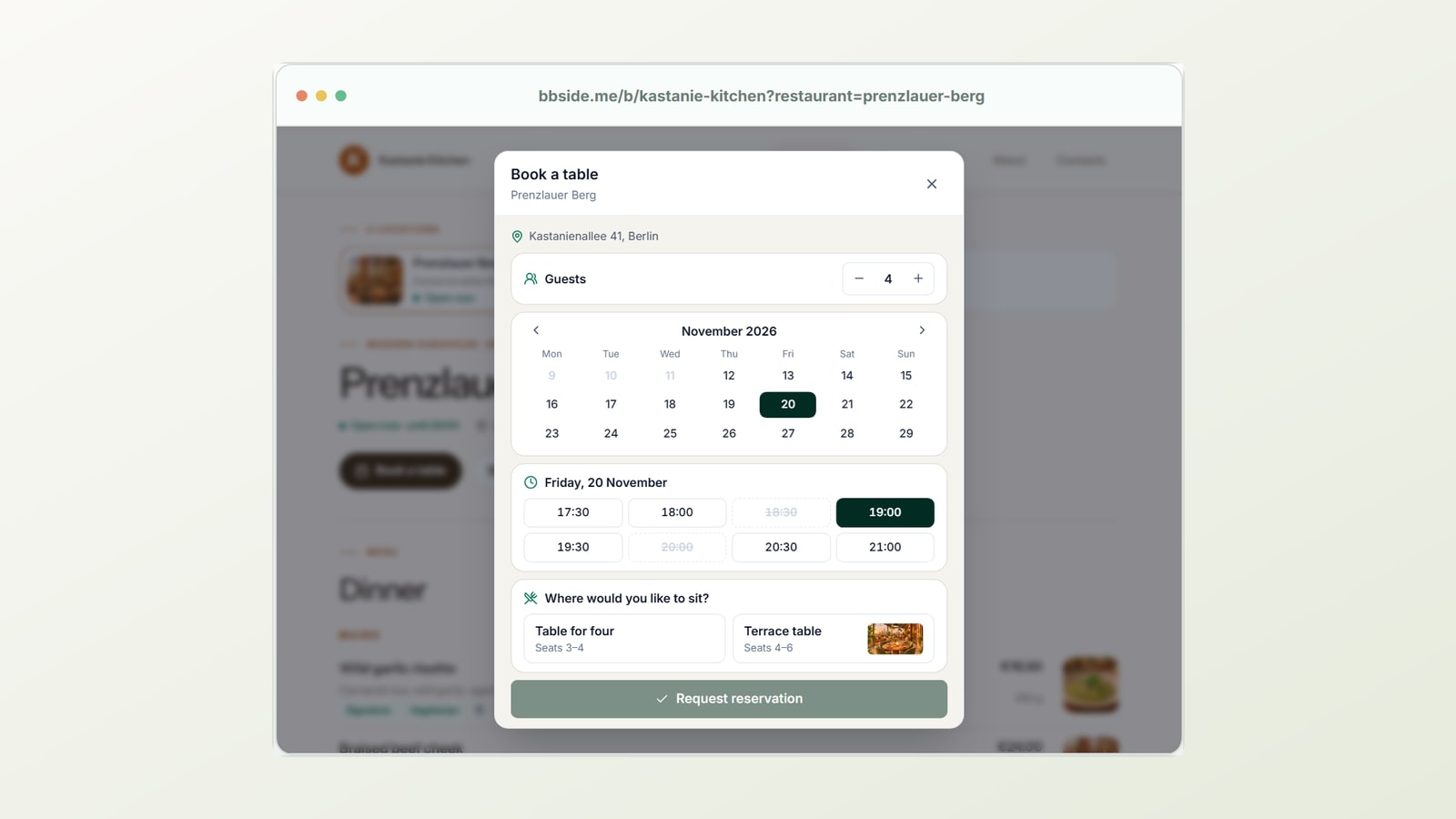
When four guests look for Friday at 19:00, BBSide shows times with a table that fits and offers the smallest suitable table type first. If you keep some tables for walk-ins, include only the tables you want to make available online.
Set reservation hours around your service
Kastanie Kitchen can keep its doors open until 23:00 and run online reservations from 17:30 to 22:00. If a table for four is held for two hours, the latest available start in that window is 20:00. That leaves the table booked for the whole meal. You can set a shorter duration for two guests and a longer one for a larger group if that fits the way you serve.
Keep your public opening hours accurate too. They tell people when they can visit. Reservation hours determine which times people can request online.
Confirm requests from your dashboard
A guest opens your restaurant page, picks a party size, date and time, then leaves their contact details. They can send the request from their phone without creating an account.
You see the reservation under Bookings with the table, party size, time and guest details. Confirm it there and BBSide sends the guest a confirmation email. The reservation stays in the dashboard so you can pull it up again before service.
Put the link where guests already find you
Use the link to your BBSide restaurant on your website, your social profiles and in replies to enquiries. If you also publish your menu on BBSide, a guest can check the dishes before requesting a table. For several locations, share the link to the specific restaurant so guests arrive at the right address.